Ever tried to email a job application, only to realize your resume, cover letter, and portfolio are three separate files? Or maybe you're trying to send a client a project update, but the files are scattered across five different PDFs. It's a common, frustrating problem.
The good news is, you can stitch those files together into one clean, professional document for free. Using a browser-based tool like PDFPenguin, you can merge multiple PDFs in seconds without downloading a single piece of software. It’s perfect for quickly organizing reports, applications, or receipts.
Why You Need a Quick Way to Combine PDFs
We've all been there—juggling a dozen PDF attachments for a single task. Whether you're compiling a report from different team members or just organizing invoices for an expense report, managing separate files is a digital headache. Knowing how to combine PDFs for free isn't just a convenience; it's a core productivity skill.
With so many of us working remotely, being able to merge documents on the fly streamlines everything. Instead of sending a confusing chain of email attachments, you can present one polished, professional file that’s easy for everyone to follow.
The Rise of Browser-Based Simplicity
This growing need for digital efficiency is why free online PDF tools have exploded in popularity. The demand for these simple, effective services has surged, with the user base growing from roughly 25 million in 2020 to a projected 1.7 billion by 2025. You can find more insights on this trend and see how platforms are adapting.
Browser-based combiners have a few key advantages that make them the go-to for most people:
- No Installation Required: You don’t need to download or install anything, which saves space on your device and skips any complex setup.
- Universal Accessibility: As long as you have an internet connection, you can merge files from a Windows PC, a Mac, or even your phone.
- Immediate Results: The whole process—from uploading your files to downloading the merged document—usually takes less than a minute.
In short, learning how to combine PDF files for free with an online tool is a simple hack that solves a universal problem. It turns a cluttered mess of files into a single, easy-to-share document, saving you a ton of time and frustration.
Quick Guide to Free PDF Merging Methods
To give you a clearer picture, here’s a quick breakdown of the most common ways to merge PDFs for free, along with where each one shines.
| Method | Best For | Pros | Cons |
|---|---|---|---|
| Online Tools (like PDFPenguin) | Quick, one-off tasks on any device | No software needed; fast & accessible | Requires an internet connection; not ideal for highly sensitive files |
| Built-in OS Tools (Mac Preview) | Mac users needing basic merging | Free and pre-installed; works offline | Limited to macOS; lacks advanced features like reordering |
| Desktop Software (Free Versions) | Frequent users needing offline access | More features; can handle large files | Requires installation; free versions may have ads or limitations |
| Cloud Storage (Google Drive) | Merging files already in the cloud | Integrated with your storage; accessible anywhere | Can be clunky; not its primary function |
While each method has its place, online tools offer the best blend of speed, simplicity, and accessibility for the vast majority of everyday tasks.
How to Merge PDFs in Your Browser Step by Step
Alright, let's get into the nuts and bolts of it. It’s one thing to know you can combine PDFs for free, but it’s another to see just how ridiculously easy it is. I'll walk you through the entire process using a typical online tool, so you'll know exactly what to do no matter which one you pick.
Imagine you're putting together an expense report. You’ve got separate PDFs for your receipts, a travel summary, and an invoice. Sending three different attachments is clunky. You want one clean, organized document. This is the perfect job for a free online PDF merger.
Getting Your Files Ready for Merging
First things first, open up a reliable tool like the PDFPenguin merge tool. The best ones don't make you install anything and have a clean, simple interface. You'll usually see a big area inviting you to add your files.
You've got two easy ways to do this:
- Drag and Drop: This is my go-to. Just find the files on your computer, highlight them, and drag them right into the browser window.
- Choose Files Button: If you'd rather browse, just click the "Choose Files" or "Upload" button. This pops open your computer's file explorer so you can navigate and select your documents.
For our expense report, you’d just grab Receipts.pdf, TravelSummary.pdf, and Invoice.pdf and drop them in.
Arranging and Organizing Your Documents
Once your files are uploaded, you'll see them as little thumbnails right in your browser. This is your digital workspace, and it's where the magic happens. The order you see on the screen is exactly how they'll appear in the final, merged PDF.
This is a critical step. Don't just rush to click "merge."
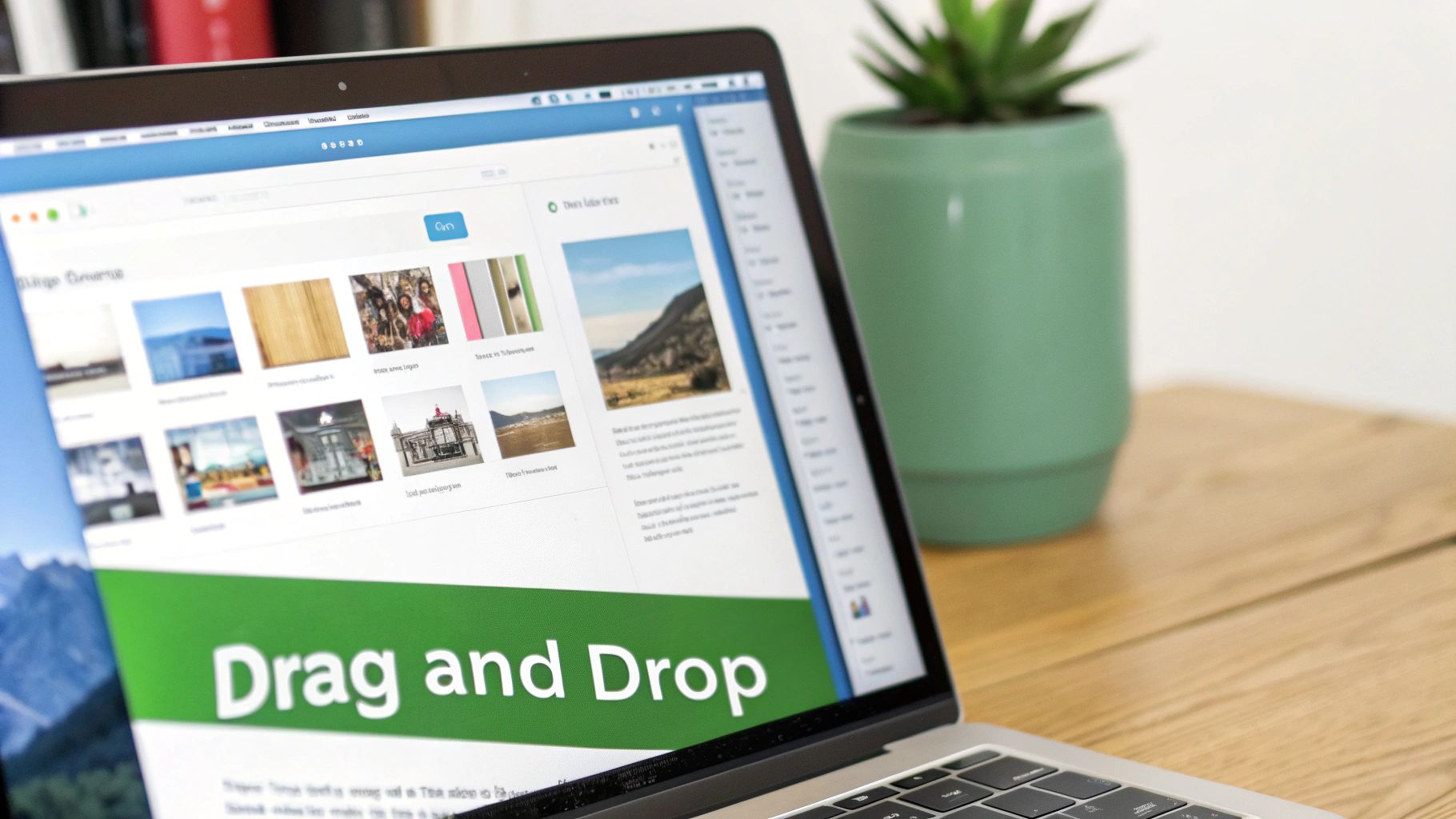
The image shows each uploaded file as a separate tile, making it easy to see everything at a glance before you combine them.
Reordering is as simple as clicking and dragging a thumbnail. For the expense report, you probably want the TravelSummary.pdf first, then the Invoice.pdf, and finally the Receipts.pdf as an appendix. Just drag them into that order. Some tools even let you rotate or delete pages right from this screen.
Pro Tip: Don't just merge files randomly. Think about who's going to read it. A logical flow—like a cover page, the main content, then appendices—makes your document look professional and saves the reader a headache. Taking just 10 seconds to get the order right can make all the difference.
Finalizing and Downloading Your New PDF
Once you've got your files lined up perfectly, it's time for the final click. Look for a big button that says "Merge PDF," "Combine Files," or something similar. Clicking it tells the server to start stitching your documents into one single, cohesive PDF.
This part is almost instant. The tool does all the heavy lifting behind the scenes, and in just a few seconds, you'll get a download link for your new, unified file.
Just like that, your three separate files (TravelSummary.pdf, Invoice.pdf, and Receipts.pdf) are now one document, probably named something generic like merged.pdf. Download it, rename it to ExpenseReport-Q3.pdf, and it’s ready to send. You've just managed to combine PDF files for free without breaking a sweat.
Mastering Your PDF Workflow with Advanced Tips
Knowing how to combine PDF files is a great start, but mastering the little details is what really saves you time and frustration. It’s the difference between ending up with a jumbled mess of pages and creating a polished, professional document that’s ready to go.
Think of it like this: you wouldn't just toss a bunch of random ingredients into a bowl and hope for the best. A little prep work before you hit that "combine" button makes all the difference, ensuring your final file is perfectly organized and easy for anyone to read.
Strategically Reorder Files for a Flawless Flow
The most powerful feature of any good online PDF combiner is the ability to rearrange your files before you merge them. Seriously, don't skip this step. A logical flow is everything, whether you're putting together a project proposal, a client report, or your personal portfolio.
Imagine you're building a portfolio. You’d want a very specific order:
- Cover Page: Your title page should always be the first file you add.
- Project Summaries: Next, your individual case studies.
- Resume/CV: Then, your professional experience.
- Testimonials: And you’ll want to close with client feedback to leave a strong impression.
Dragging and dropping these into the right sequence before you merge saves you from the massive headache of having to split the PDF and start all over again. If you want to get really granular with page-by-page arranging, our guide on how to reorder PDF pages has more advanced techniques.
Clean Up Your Documents Before Combining
Have you ever merged a bunch of scanned documents only to find random blank pages or an upside-down invoice stuck in the middle? It happens to everyone, but these small mistakes can make your final PDF look sloppy and unprofessional.
Thankfully, most quality tools give you a way to fix this right in the upload window. Before you merge, just take a quick look at the thumbnails of your files. See a page that’s sideways? Look for that little rotate icon. Spot a blank page that was scanned by mistake? Hit the delete button. This pre-merge cleanup takes just a few seconds but makes a huge difference in how clean your final document looks.
Taking just 30 seconds to reorder, rotate, and remove junk pages is one of the best habits you can build. It’s a tiny time investment that pays off big in professionalism.
Balance Quality and File Size
Not all merged PDFs are created equal. The final quality and size of your file really come down to the compression settings you pick. Figuring out when to prioritize one over the other is the key to a smarter workflow.
When to Prioritize Small File Size: Go with a higher compression setting when you need to email the document or upload it to a web portal with a strict size limit. This is perfect for things like online job applications or sending quick drafts to a colleague for review. The image quality might drop a little, but the file will be nimble and easy to send.
When to Prioritize High Quality: Choose the lowest compression (often called "high quality") when your document is headed for the printer or a professional presentation. This keeps the full resolution of your images and graphics, which is non-negotiable for marketing materials, design portfolios, or official reports where every detail matters.
By making these quick tweaks, you can combine PDFs for free and still get a final document that’s perfectly suited for its purpose.
Keeping Your Documents Safe on Free Online Tools
Uploading a personal or work file to a website naturally raises a good question: is it actually safe? When you combine PDFs using a free online tool, you're placing trust in that service. The good news is that reputable providers take serious steps to protect your privacy, and understanding what they do lets you merge documents with confidence.
The first line of defense is SSL/TLS encryption. This is the same security technology your bank uses to protect your financial data online. When you see that little padlock icon in your browser's address bar, it's a sign that your connection is secure. It scrambles the data as it travels between your computer and the website's server, making it unreadable to anyone trying to snoop.
But what happens to your files once they arrive on the server? That’s where a company’s data handling policies become critically important.
Understanding Data Retention and Deletion
Trustworthy services that let you combine PDFs operate on a simple principle: they have no reason to keep your files long-term. Their job is to provide a quick, one-off service, not to act as a storage locker for your documents.
Reputable tools like PDFPenguin automatically delete your files from their servers after a short window—often within just one hour. This policy is designed to minimize risk, ensuring your sensitive documents aren't left sitting on a server indefinitely. Before using any tool, always look for a clear privacy policy that tells you exactly how long your files are kept.
A strong privacy commitment isn't just about legal jargon; it's a clear sign of a trustworthy service. Look for tools that promise automatic file deletion within a few hours. This simple practice drastically reduces your exposure to potential data breaches.
A Practical Checklist for Vetting Any Tool
Before you upload anything, it pays to run through this quick mental checklist to gauge how safe a tool really is:
- Check for HTTPS: Does the URL start with
https://and show a padlock? This is non-negotiable and confirms your connection is encrypted. - Read the Privacy Policy: Is it easy to find and understand? It should clearly state their file deletion schedule. If it's vague or hard to find, that's a red flag.
- Avoid Ultra-Sensitive Documents: As a general best practice, it's wise to avoid uploading files with highly sensitive personal data. Think tax returns, medical records, or documents containing bank account numbers.
- Consider Password Protection: For an extra layer of security, you can protect your PDF files with a password before you even merge them. This makes the contents unreadable to anyone without the password, even if the file itself were somehow intercepted.
- Clear Your Cache: After you've finished your task and downloaded the new file, clearing your browser's cache is a good final step to remove any temporary local copies from your machine.
Free Offline and Cloud-Based PDF Merging Tools
While browser-based tools are incredibly handy, they aren't the only game in town when you need to combine PDF files for free. Sometimes, you need a bit more muscle, offline access, or a solution that plugs right into your existing workflow. Let's look at the alternatives so you always have the right tool for the job.
Imagine you're trying to combine dozens of high-resolution marketing brochures without an internet connection. Or maybe your entire team lives in Google Drive, and leaving that ecosystem just to merge two documents feels like a waste of time. These are perfect scenarios for an offline or cloud-based tool.
Robust Offline Solutions for Power Users
When you need to merge PDFs without an internet connection or you're hitting daily limits on an online tool, free desktop software is a fantastic choice. Tools like PDF24 Creator or PDFsam Basic give you powerful features right on your computer. You get complete control over your documents without ever uploading them to a server.
These apps are perfect for:
- Batch Processing: Combining hundreds of files at once, which would be a nightmare with most online tools.
- Offline Work: Merging documents on a plane, during a commute, or anywhere the Wi-Fi is flaky.
- Total Privacy: Keeping all your files on your device is a must for sensitive information.
And here's a tip: you might already have a great tool installed. If you’re on a Mac, the built-in Preview app handles PDF merging beautifully. Just open one PDF, drag the thumbnail of another PDF into the sidebar, and save. It's that simple.
Seamlessly Merge PDFs in the Cloud
The world has moved to the cloud, and document management is no exception. In fact, the use of cloud PDF tools has shot up by 200% since 2020, mostly driven by small businesses and educators. You can find more data on the rapid growth in the PDF market if you're curious.
This trend makes integrated tools a must-have. If your documents already live in a cloud environment like Google Drive, you can often combine them without ever leaving your workspace. Just install a free add-on like "PDF Mergy," and you can right-click on your selected PDFs to merge them directly within Drive. It keeps your workflow neat and tidy.
Key Takeaway: The best free PDF merger is the one that fits what you're doing right now. An offline tool is your best bet for bulk jobs and maximum privacy, while a cloud add-on is perfect for quick merges inside your digital ecosystem.
To make it even easier to choose the right tool for your needs, here's a quick comparison.
Comparing Free PDF Merging Solutions
Deciding between an online tool, a desktop app, or a cloud add-on comes down to your priorities—speed, privacy, or convenience. This table breaks down the key differences.
| Tool Type | Example | Key Advantage | Ideal Use Case |
|---|---|---|---|
| Browser-Based Tool | PDFPenguin | Speed & accessibility | Quick, one-off merges on any device without installation. |
| Offline Desktop Software | PDFsam Basic | Power & privacy | Bulk processing sensitive files without an internet connection. |
| Cloud-Based Add-On | PDF Mergy (for Google Drive) | Workflow integration | Combining files that are already stored in your cloud drive. |
| Built-in OS Tool | Mac Preview | Zero-install convenience | Fast, simple merges for Mac users without third-party apps. |
Each option shines in different situations. Browser tools are for speed, desktop apps are for power, and cloud add-ons are for seamless integration.
Not sure if an online tool is the right call for your specific files? This decision tree can help you make a quick, safe choice.
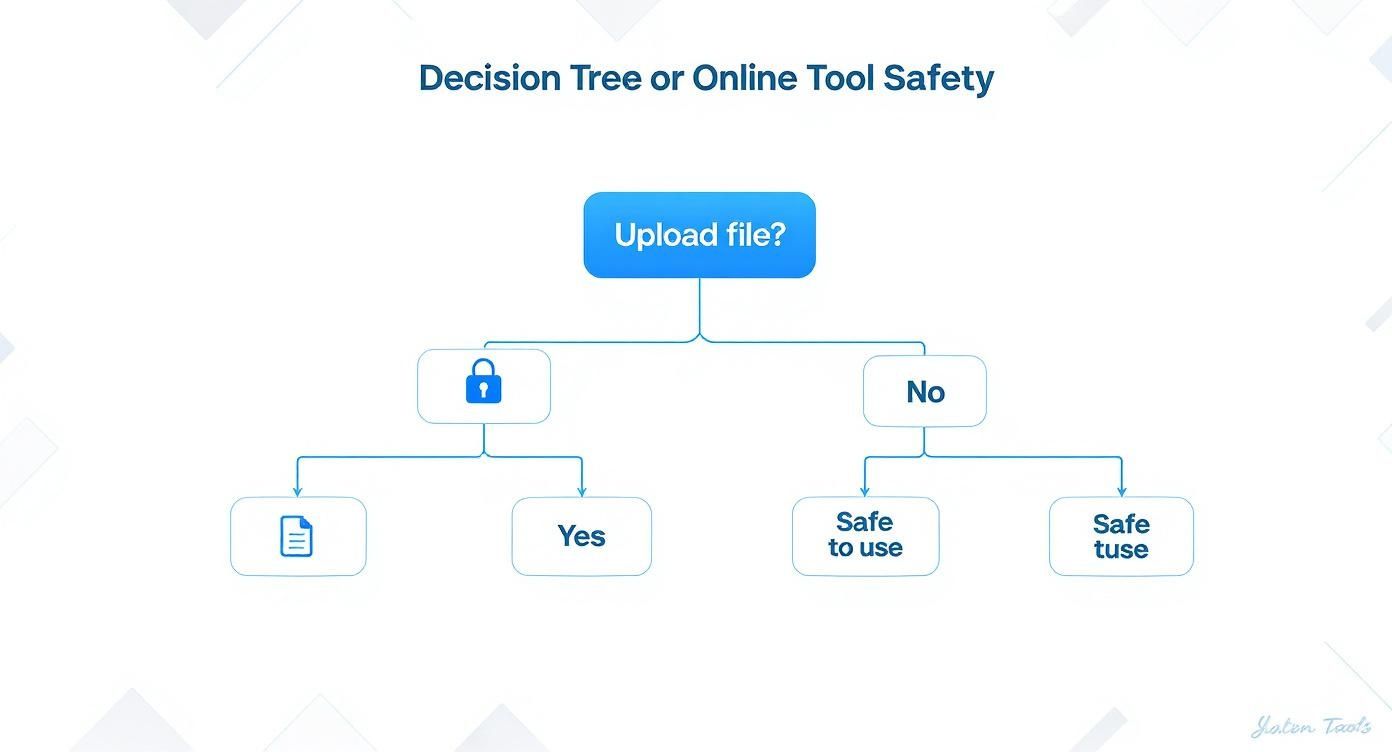
As the flowchart shows, a quick check for security basics—like the padlock icon (HTTPS) and a clear privacy policy—is a non-negotiable first step. Once you know what to look for, you can confidently use both online and offline tools to combine your PDFs for free.
Common Questions About Combining PDF Files
Once you've merged a few PDFs, you'll probably run into a few practical questions. What about file limits? Does merging ruin the quality? These are the little details that can trip you up.
Here are the straightforward answers to the most common snags people hit when combining PDFs for free.
Is There a Limit to How Many PDFs I Can Combine?
Yes, most free online tools have some kind of limit to keep their servers from getting overloaded. A typical cap might be three merges per day, or a limit of around 10-20 documents per batch. For most day-to-day stuff, like putting an application packet together, that’s more than enough.
But if you're trying to archive hundreds of invoices at once, you’ll probably hit a wall. In those cases, a free desktop app is your best bet, since they usually have no daily limits or restrictions.
Will Combining PDFs Reduce File Quality?
This is a great question, especially if you’re working with a design portfolio or a presentation full of images. The short answer is no—merging PDFs does not reduce the quality of your text or vector graphics. The process just stitches your existing pages together into a new file.
Where you might see a slight difference is with image compression. To keep the final file size from ballooning, some tools will apply a bit of compression automatically.
Good tools will often let you choose between "standard" and "high quality." If visual clarity is critical, always pick the highest quality option. It will preserve the original resolution of your images.
Can I Combine Password-Protected PDF Files?
Nope. You can't merge a locked or password-protected PDF directly. If you try uploading one to a free online tool, you’ll almost always get an error. It’s a security feature that prevents anyone from messing with a protected document.
The workaround is simple: you have to unlock the PDF first. Just open the file with its password, save a new version without the password protection, and then upload that unlocked copy to the merger tool. It should work perfectly.
What If the Final Merged PDF Has Formatting Issues?
It happens. Sometimes you merge a bunch of files and end up with a few pages that are sideways or have weird sizing. A landscape-oriented chart mixed in with portrait pages is a classic example. The easiest fix is to check your original files for consistency before you merge them.
If you’ve already merged the file and spotted an error, don’t panic. Most online PDF toolkits, including PDFPenguin, have a separate "Rotate PDF" tool. You can upload the combined file, fix the orientation of the wonky pages, and download a clean, professional-looking document.
Ready to merge your PDFs without any of the hassle? PDFPenguin offers a suite of fast, free, and secure browser-based tools to combine, compress, and organize your documents in seconds. Get started now and see how easy your PDF workflow can be: https://www.pdfpenguin.net