
We’ve all been there. You open a crucial report or a scanned contract, and it’s completely sideways. It's an incredibly common frustration, but luckily, the fix is just as simple.
The quickest way to solve this is with a free online tool that lets you rotate your PDF pages. You can flip a single page or the entire document 90 degrees clockwise, 90 degrees counter-clockwise, or a full 180 degrees in just a few clicks. It’s a basic skill, but an essential one for anyone who handles digital documents regularly.
Why Knowing How to Rotate PDF Pages Is Essential
Dealing with improperly oriented PDFs is a surprisingly frequent headache. Maybe a document was fed into the scanner the wrong way, or a file compiled from multiple sources ended up with mixed orientations. Whatever the reason, a sideways or upside-down page looks unprofessional and completely disrupts the reading flow.
Knowing how to rotate PDF pages correctly ensures your documents are always presentable and easy to read. It’s a small fix that makes a huge difference in clarity, whether you're submitting a business proposal, a final thesis, or a signed legal agreement.
Common Scenarios for Page Rotation
You’ll find yourself needing to rotate a PDF in all sorts of situations. Think about these common instances:
- Scanned Documents: Scanners, especially those with automatic document feeders, are notorious for capturing pages in the wrong orientation.
- Combined Files: When you merge several PDFs, you might end up with a mix of portrait and landscape pages that need to be unified.
- Photos or Images: A photo saved as a PDF might keep its original camera orientation, showing up sideways when you open it.
- Digital Reports: It’s common for charts or large tables to be created in landscape format, while the rest of the report is in portrait.
This simple decision tree helps visualize when you might need to rotate a single page versus the whole file.
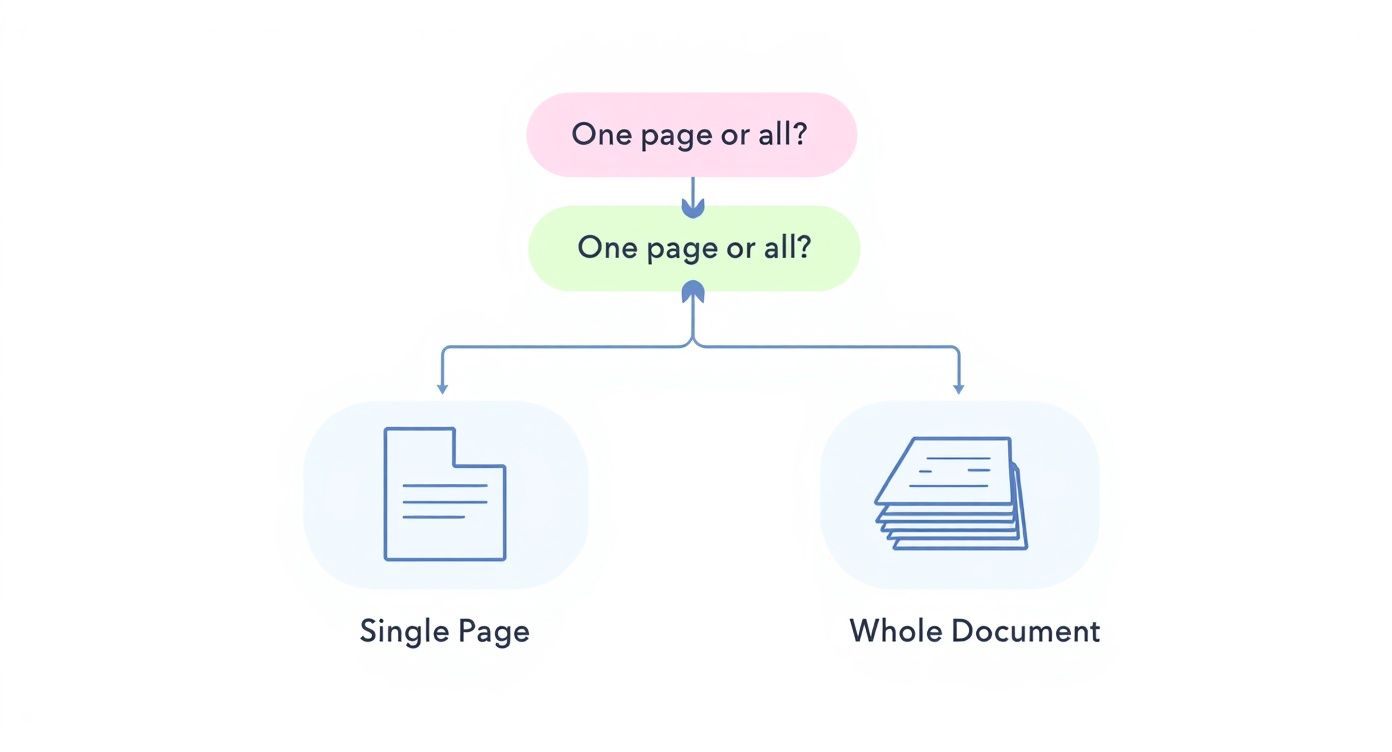
The key is to figure out if the orientation problem affects just one element, like a specific chart, or if the entire document was scanned improperly from the start.
And this isn't a rare task. Research shows that rotating PDF pages is one of the most common editing actions people perform. Roughly 68% of professionals who work with PDFs need to rotate pages at least once a week, and a significant 32% do it daily. You can find more insights about these document workflow trends if you're curious.
Knowing this simple skill saves you from the frustration of sending or printing a document that’s literally unreadable. It’s a foundational edit that supports all other document management tasks.
Quick Guide to PDF Rotation Methods
Not sure which tool is right for you? This table breaks down the best options for rotating PDF pages, so you can pick the perfect one for your needs.
| Method | Best For | Cost | Key Feature |
|---|---|---|---|
| PDFPenguin | Quick, one-off rotations without software installation | Free | Browser-based, no sign-up needed |
| Adobe Acrobat | Frequent, professional-grade PDF editing | Paid | Powerful batch processing and editing features |
| macOS Preview | Mac users needing a simple, built-in solution | Free | Natively integrated into macOS |
| Windows Options | Windows users who prefer desktop apps | Free/Paid | Various options, from browsers to dedicated apps |
| Mobile Apps | On-the-go edits from a phone or tablet | Free/Paid | Convenience and mobile accessibility |
| Command-Line | Developers and tech-savvy users for automated tasks | Free | Scriptable and highly efficient for bulk actions |
Whether you need a quick online fix or a powerful desktop tool for daily use, there's a solution that fits perfectly into your workflow.
Using Free Online Tools to Rotate PDFs
We’ve all been there: a scanned document lands on your desk sideways, and you need to fix it now. When you’re in a pinch, free online tools are your best friend. They work right in your web browser, meaning no downloads, no installations, and no waiting.
It's the perfect solution for a quick, one-off fix or when you're on a computer where you can't just install new software.
The process is almost always the same. Most browser-based tools, including our own PDFPenguin, use a simple drag-and-drop system. You upload the file, hover over a page thumbnail, and click an icon to turn it left or right. It’s that easy.
The Standard Online Workflow
Once you’ve used one online PDF rotator, you pretty much know how to use them all. The workflow is simple and intuitive: upload, adjust, and download.
- Upload Your Document: Head to the tool’s website and drag your PDF into the upload box. Or, you can just click to browse and select it from your computer.
- Select and Rotate Pages: The tool will show you a preview of all your pages. From here, you can click to rotate individual pages or find an option to rotate the entire document at once.
- Apply and Download: After you’ve made your changes, hit the "Apply" or "Save" button and download your newly oriented file.
The whole thing usually takes less than a minute. The global market for PDF software hit USD 2.15 billion for a reason—tools that make basic tasks like page rotation incredibly accessible are in high demand. If you're curious, you can dig into more data on the expanding PDF software market to see just how big this space has become.
The real win with online tools is their universal access. As long as you have an internet connection, you have a powerful PDF editor ready to go. No more getting stuck with a sideways document.
Navigating Privacy and Security
Of course, uploading files to a random website raises a fair question: is my data safe? It's a smart thing to ask, especially with sensitive documents. Before you upload anything confidential, it’s worth taking a quick look at the tool's privacy policy.
Here’s what to look for in a trustworthy service:
- Automatic Deletion: Reputable sites will clearly state that they automatically delete your files from their servers after a short time, usually just a few hours.
- Secure Connections: Make sure the website URL starts with HTTPS. That little "s" means your connection is encrypted, keeping your data safe as it travels to and from their server.
- Clear Policies: The privacy policy shouldn't be hidden or filled with confusing legal jargon. It should plainly explain how your files are handled.
These simple checks help protect your information. For everyday documents that aren't confidential, the risk is pretty low, but it's always a good habit to be mindful.
And once you're done rotating, you might need to combine that file with others. For that, you can merge PDF files securely online to keep your entire workflow safe and streamlined.
Advanced PDF Rotation with Adobe Acrobat Pro
When you’re dealing with complex documents every day, free online tools just don’t cut it. For those moments when you need surgical precision—like fixing one scanned receipt in a 100-page expense report—you need a professional tool. That's where Adobe Acrobat Pro comes in. It’s the industry standard for a reason, giving you complete command over your document’s layout.
The magic happens in the Organize Pages tool. This isn’t just a simple rotator; it’s a high-level command center that shows you a thumbnail view of your entire PDF. From here, you can spot and fix orientation issues across dozens of pages at once without breaking a sweat.
Mastering the Organize Pages Tool
Once you open your document in Acrobat Pro, head over to the Organize Pages tool. You’ll see a clean grid of all your pages. The process from here is incredibly intuitive. Just hover over any page, and you’ll see icons to rotate it 90 degrees clockwise or counter-clockwise.
But the real power is in the selection tools. Need to fix a few pages that are scattered throughout the document? Just hold down the Ctrl key (or Cmd on a Mac) and click on each one. Once they're all selected, you can rotate them in a single click.
This is a lifesaver for correcting scanned documents where, inevitably, a few pages went into the feeder sideways or upside-down.
The ability to select specific page ranges is what really separates a pro tool from a basic one. Acrobat lets you apply changes to all pages, just the odd or even pages, or a custom range you define yourself.
Advanced Rotation for Complex Scenarios
Adobe Acrobat Pro truly shines when things get complicated. Imagine you have a long report with a mix of portrait-oriented text pages and landscape-oriented data tables. Acrobat handles this gracefully, letting you isolate and manage different sections without messing up the rest of the file.
Here are a few real-world examples:
- Correcting Scanned Batches: Select a whole range of pages (like pages 5-12) and apply a 180-degree rotation to fix an entire upside-down section instantly.
- Unifying Mixed Orientations: Quickly filter your view to show only the landscape pages. From there, you can decide whether to rotate them to portrait or leave them as they are.
- Fixing Bookmarked Sections: Have a bookmarked PDF? You can rotate an entire chapter, and Acrobat is smart enough to keep the bookmarks pointing to the right places. Your navigation links stay perfectly intact.
This level of control ensures your edits are precise and don't create a domino effect of new problems elsewhere in the document.
Pro Tips and Keyboard Shortcuts
To really speed things up, seasoned Acrobat users live by keyboard shortcuts. Once you’re in the Organize Pages view and have selected your page thumbnails, these commands are your best friend:
| Action | Windows Shortcut | Mac Shortcut |
|---|---|---|
| Rotate Right (Clockwise) | Ctrl+Shift++ | Cmd+Shift++ |
| Rotate Left (Counter-Clockwise) | Ctrl+Shift+- | Cmd+Shift+- |
Learning these shortcuts can shave precious minutes off your workflow, especially with large documents. After you've made your changes, just remember to save the file to make them permanent. I always recommend using "Save As" to create a new version—it's a good habit that keeps your original, unedited file safe.
Rotating PDFs on Your Desktop with Built-In Tools
You don't always have to hunt down a new app or visit a website just to fix a sideways PDF. More often than not, the solution is already sitting on your computer. Both macOS and Windows come with built-in tools that handle basic page rotation without any extra cost or installation hassle.
Tapping into these native apps is a great first move for quick fixes. They’re reliable, secure, and already part of your operating system, which makes them incredibly handy for everyday tasks.
Effortless PDF Rotation on macOS with Preview
If you’re a Mac user, you’ve got a surprisingly powerful PDF editor right at your fingertips: Preview. It’s the default app for viewing images and documents, and it has more than enough muscle to correct page orientation in just a few seconds.
First, just open your PDF in Preview—usually, a simple double-click on the file will do the trick. Once your document is open, look for the rotation button in the toolbar. It looks like a small square with a curved arrow. A single click will turn the current page 90 degrees.
For even faster edits, learn the keyboard shortcut. Just press Command + R to rotate a page clockwise or Command + L to spin it counter-clockwise. This method is a lifesaver when you need to quickly fix a few crooked pages in a long report.
The best part about using Preview is its simplicity. There are no complicated menus to dig through. Just open, click, and save. It's an efficient way to solve a common problem without breaking your focus.
After you’ve rotated the pages you need, just save your changes. You can either use File > Save to overwrite the original file, or better yet, choose File > Export as PDF. This creates a new, corrected version while leaving your original file untouched—a smart habit to avoid accidentally overwriting something important.
And once your pages are facing the right way, you might also want to reorder PDF pages to get the final structure just right.
Simple PDF Rotation Options on Windows
Windows users have a few straightforward options, too, even if they aren’t quite as direct as macOS Preview. One of the most common tricks involves the “Print to PDF” function, which is built right into the operating system and available from most apps, including web browsers like Microsoft Edge.
To pull this off, open your PDF in a browser or any other viewer. Hit the print command (Ctrl + P), but instead of selecting your actual printer, choose Microsoft Print to PDF from the list of available printers. In the print preview settings, you should spot an option for “Orientation.” Just switch it from Portrait to Landscape or vice-versa.
This method essentially creates a brand-new PDF where all pages have the new orientation. While it’s perfect for rotating an entire document, it’s not the right tool for fixing a single rogue page inside a larger file. For those one-off corrections, a dedicated third-party app is usually a better bet.
Fixing PDFs on Your Phone or Tablet
Let's be honest—work doesn't always happen at a desk. You get an important scanned document emailed to you minutes before a meeting, but the signature page is completely upside down. You don’t have time to run back to a computer. This is where knowing how to rotate a PDF right on your phone becomes a lifesaver.
Thankfully, both iOS and Android have tons of great apps for this. Powerful and often free tools like Adobe Acrobat Reader, Xodo, and Foxit put serious PDF editing power right in your pocket. The best part? The process is pretty much the same no matter which app you use.
Finding the Right Mobile PDF App
Most mobile PDF apps are built to be intuitive. They hook directly into your phone’s file system, email, and cloud storage like Google Drive or Dropbox. This means you can open a PDF from almost anywhere, fix it, and send it back out without jumping through a bunch of hoops.
The main difference between apps usually comes down to the layout and where they hide the editing tools. Here’s a quick rundown of the big players:
- Adobe Acrobat Reader: The mobile version of the desktop giant. It has a super clean interface where you just tap an "Organize Pages" button to find the rotation tool. It’s reliable and a go-to for a reason.
- Xodo PDF Reader & Editor: A fantastic, feature-packed alternative that offers a ton for free. With Xodo, you’ll usually pop into a thumbnail view, tap the pages you need to fix, and hit the rotate icon.
- Foxit PDF Editor: Another solid contender that works a lot like Adobe. It gives you a simple "Organize" tab where the page rotation tools are easy to find.
Whichever one you pick, the core steps don't change: open the file, find the page management screen, and tap to rotate.
The real magic of mobile apps is speed. You can fix a crooked page seconds after you receive it and forward the corrected, professional-looking document without missing a beat. It’s a small skill that makes a huge difference when you're on the move.
A Typical Mobile Rotation Workflow
Let's walk through a common scenario. A colleague sends you a multi-page report, but one of the most important charts is sideways. What do you do?
First, you’d open that email attachment directly in your PDF app of choice. Once it’s open, look for an icon that looks like a grid of squares or a page layout symbol. Tapping it will take you to a thumbnail view showing all the pages in the document.
From there, just tap to select the specific page with the wonky chart. As soon as you select it, rotation controls will pop up—usually arrows pointing left or right. Tap the correct arrow until the chart is oriented properly.
Finally, just hit "Save" or "Done." The app will lock in your changes, and you can share the fixed file right back via email or save it to the cloud, all from your phone.
Common Questions About Rotating PDFs

As you get the hang of rotating PDFs, a few questions tend to crop up. Getting them answered upfront can save you a lot of frustration down the road. We’ve pulled together the most common ones to help you master this simple but crucial task.
One of the first worries people have is about quality. Will rotating a page make my text blurry or my images look pixelated?
The short answer is no. Rotating a PDF is a lossless operation. It just tells the file to display the page differently without re-compressing or messing with the content itself. Your text, images, and layout will all look just as sharp as they did before, and the file size won't change.
Saving and File Management
Okay, you’ve fixed the orientation—now what? It’s always a good habit to save the corrected version as a completely new file.
Nearly every tool out there, from Adobe Acrobat to online editors, gives you a "Save As" or "Export" option. Using this lets you give the file a new name (like "Annual_Report_Corrected.pdf") and keeps your original document safe and sound. Think of it as a safety net in case you ever need to go back to the original version.
But what if your changes won't save at all? This is a surprisingly common hiccup, and it usually boils down to two things:
- Security Restrictions: The PDF might be password-protected against edits. Most PDF readers have a "Document Properties" or "Security" tab where you can check for restrictions. If it’s locked, you’ll need the password to make and save any changes. For a deeper dive, check out our guide on how to protect your PDF documents.
- Software Glitches: Sometimes, the program is just being difficult. If the file isn't protected, a quick restart of the application or even just trying a different PDF tool can often fix the issue right away.
Rotating Multiple Pages at Once
Fixing one sideways page is easy enough, but what about a whole scanned document that’s upside down? Don’t worry, you don’t have to rotate them one by one.
Most dedicated PDF editors and online tools are built for this exact scenario. In a program like Adobe Acrobat, you can jump into the "Organize Pages" view, hold down Ctrl (or Cmd on a Mac), and click to select all the page thumbnails you need to fix. With all of them selected, a single click on the rotate button flips them all at once. It’s a huge time-saver.
For a simple and secure way to handle all your PDF needs—from rotating and merging to compressing and converting—give PDFPenguin a try. All the tools you need are ready to go, right in your browser at https://www.pdfpenguin.net.