Splitting a PDF sounds complicated, but it’s actually something you can do right in your browser in under a minute. The easiest way is to use an online tool like PDFPenguin. You just upload your file, pick the pages you want to separate, and download your new, smaller documents. No software to install, no complicated steps.
Why You Need to Split a PDF
Ever tried to email a massive report, only to get that frustrating "attachment size limit exceeded" error? Or maybe you just needed to send the signature page from a 50-page contract, not the whole thing.
These are the exact moments when knowing how to split a PDF becomes a lifesaver. It’s not just about breaking a big file into smaller pieces; it’s about making your documents more manageable, shareable, and secure.
This isn’t a niche problem—it's something millions of people do every day. Adobe, for example, sees over 100 million daily active users who open a staggering 400 billion PDFs each year. While compressing and e-signing get a lot of attention, splitting remains a core function for anyone dealing with large documents. You can dive into more fascinating statistics on how people use PDF tools if you're curious.
Common Scenarios for Splitting Documents
The need to break up a PDF pops up everywhere, in both professional and personal settings. Here are a few real-world examples:
- Isolating key content: Pulling out a single chapter from a textbook to focus on for a test.
- Sharing information securely: Separating a public-facing section of a report from sensitive internal data.
- Getting organized: Breaking a huge project file into smaller, topic-specific documents that are easier to find and archive.
- Meeting file size limits: Splitting a huge design portfolio or presentation into smaller chunks that can actually be sent over email.
As you can see, a good online PDF splitter gives you a clear, visual way to handle this.
Notice how each page is laid out. You can just click the pages you want or type in a range. It’s simple and intuitive.
The Benefits of a Streamlined Workflow
Beyond just fixing an immediate problem, getting good at splitting PDFs makes your whole workflow smoother. Instead of downloading clunky software or having to ask a colleague for help, you can just open a browser tab and get it done yourself. It’s a small thing that makes you more independent and efficient.
The real advantage of mastering a simple skill like splitting a PDF is the time you save. What used to be a frustrating roadblock becomes a quick, two-minute task, letting you focus on more important work instead of wrestling with document formatting.
Ultimately, learning how to split a PDF gives you more control. It lets you tailor information for a specific audience, makes collaboration easier, and keeps your digital files neat and organized. It’s a small skill that pays off in big ways.
Common PDF Splitting Methods at a Glance
There's more than one way to split a PDF, and the right tool often depends on what you're trying to do. Here’s a quick breakdown of the most common methods and when to use them.
| Splitting Method | Best For | Example Use Case |
|---|---|---|
| Online Splitter Tool | Quick, one-off tasks without installing software. | You need to email just the first two pages of a 10-page report. |
| Adobe Acrobat Pro | Frequent, complex document management. | You're an editor who needs to extract chapters from a book manuscript daily. |
| Built-in OS Tools (like Preview) | Basic splitting for macOS users without internet. | You're on a flight and need to separate a travel itinerary from a booking confirmation. |
| Command-Line Tools | Automated, bulk splitting for developers. | You need to programmatically split 1,000 invoices into single-page files. |
While a pro tool like Acrobat offers more power, for most day-to-day needs, a free online splitter like PDFPenguin is the fastest and simplest solution.
A Practical Walkthrough of Splitting PDFs
Alright, you know why you might need to split a PDF, so let's get our hands dirty and actually do it. We'll use a simple online tool to walk through a few real-world scenarios, from grabbing a single page to pulling out custom sections. My goal is to show you just how fast and easy it is to get the exact document you need, every single time.
Not sure if splitting is the right move? Sometimes it's a gut feeling, but this little decision tree can help clear things up.
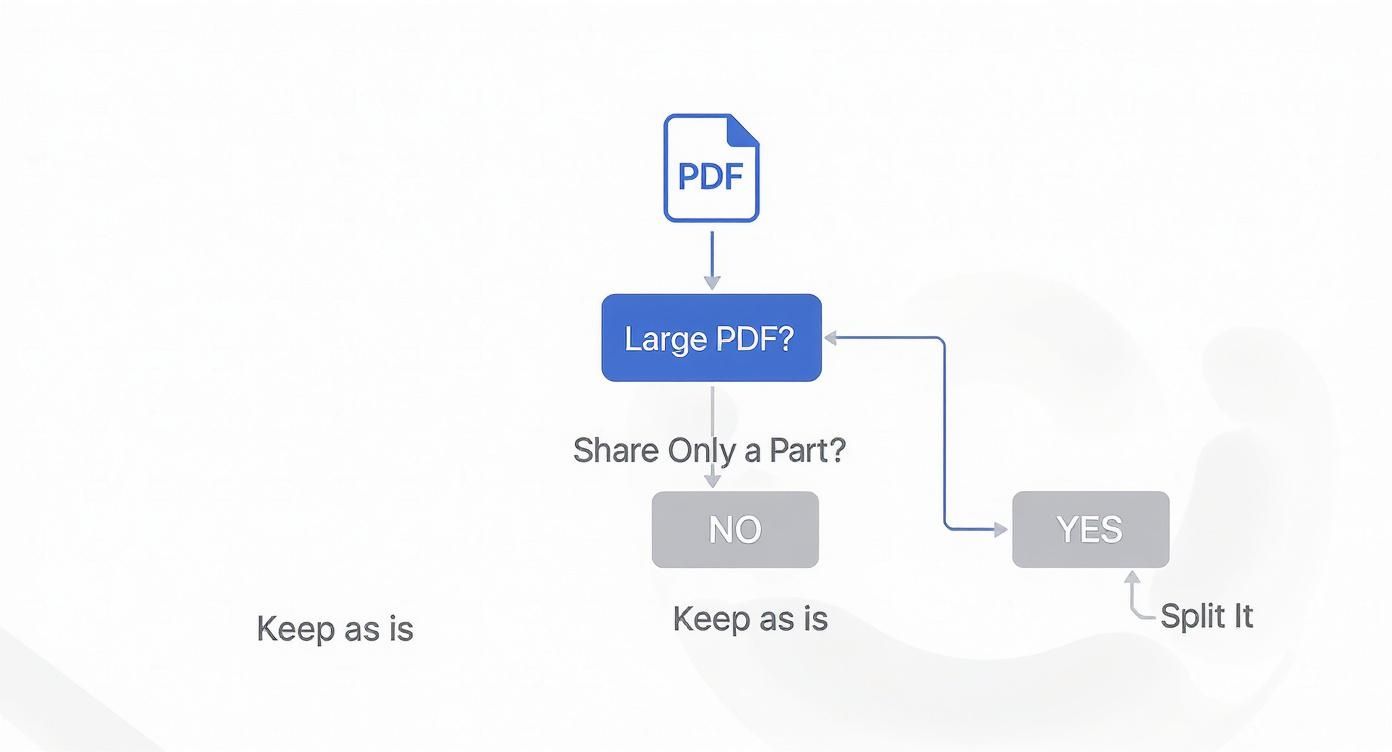
As you can see, it usually boils down to the file's size or who you're sharing it with. A quick check here can save you a lot of hassle later.
Extracting Single Pages
This is the most common reason to split a PDF, hands down. You’ve got a massive contract, but you only need to email the signature page. Or you have a monthly bank statement, but just need to save the invoice from page three. This is where single-page extraction is your best friend.
Getting it done is a breeze. Just head over to an online tool where you can split your PDF document in seconds. Once your file is uploaded, you’ll see thumbnails of every page laid out in front of you.
From there, just click on the one you need. Let’s say you have a 30-page report but only want to share the executive summary on page two. You just click that thumbnail, and that's it. The tool creates a new, one-page PDF with only that content, cutting out all the noise.
Isolating Specific Page Ranges
What if you need a chunk of pages, but not the whole book? Maybe you’re a student who needs to save Chapter 3 (pages 45-68) from a textbook PDF, or a project manager who needs to send just the timeline (pages 5-8) from a huge proposal. Splitting by page range is perfect for this.
The steps are almost identical to pulling a single page. Instead of clicking one thumbnail, you define a range. Most tools give you a couple of ways to do this:
- Click and Drag: Select the first page you want, hold the Shift key, and click the last page.
- Type It In: Find the input box and just type the range, like "45-68".
This method is ideal for grabbing whole sections or chapters while keeping them in order. You get a clean, self-contained document that makes perfect sense to whoever you send it to.
Pro Tip: Splitting by range is all about preserving context. Extracting a full section ensures your reader gets the complete picture, which is far more effective than sending them a bunch of disconnected, individual pages.
Batch Extraction For Custom Documents
Now for the really flexible stuff. What if the pages you need are scattered all over the document? Imagine you're building a portfolio and want to grab the cover (page 1), a specific case study (pages 12-15), and your contact info from the last page (page 30).
This is where batch extraction shines. You can cherry-pick individual pages and ranges from anywhere in the document and stitch them together into a brand-new PDF.
After uploading your file, you just click the specific pages or ranges you need. In our portfolio example, you’d select page 1, then highlight pages 12 through 15, and finally click on page 30. The tool intelligently pulls all your selections and assembles them—in order—into a single, custom PDF. It’s a game-changer for creating targeted reports, presentations, or client info packets.
Advanced Splitting Techniques for Professionals
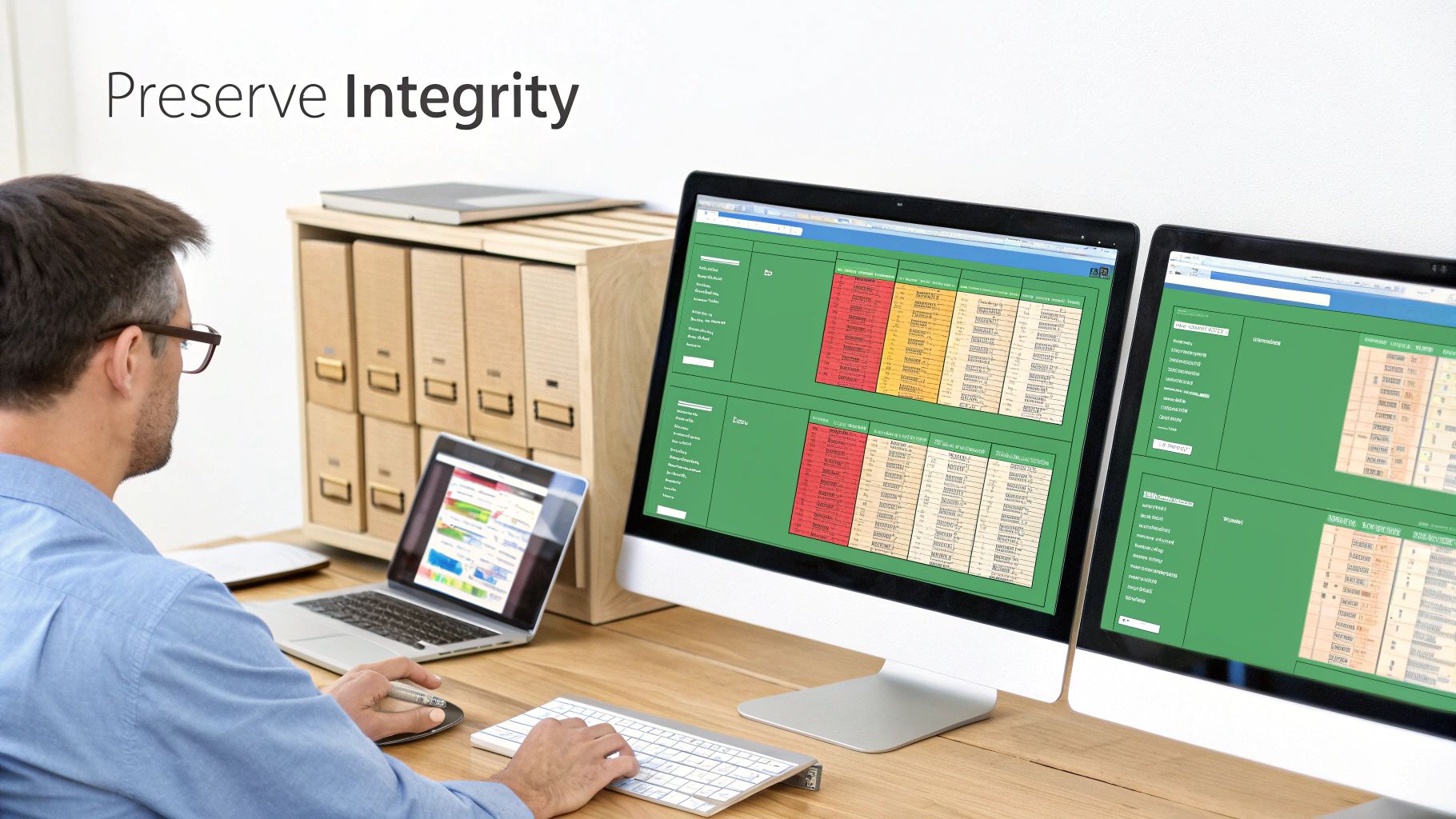
Once you've gotten the hang of pulling out a few pages here and there, it's time to think bigger. For professionals, splitting a PDF isn't just about making files smaller. It’s about managing complex documents, protecting critical data, and keeping your workflows moving smoothly.
Imagine you're a consultant building a portfolio. You need to pull specific case studies, financial charts, and client testimonials from half a dozen massive project reports. Simply yanking out the pages isn't enough—you have to be certain that every high-res chart, company logo, and clickable link makes it to the new file perfectly intact.
Preserving Document Quality and Metadata
One of the biggest worries with any PDF tool is losing quality. When you split a document packed with images or detailed graphics, there's always a risk the new file will look blurry or pixelated. A good PDF splitter avoids this by re-rendering the pages without aggressive re-compression, keeping everything sharp.
But the visible content is only half the story. The hidden data is just as important:
- Metadata: This is stuff like the author's name, creation date, keywords, and title. Keeping this data is essential for archiving, document tracking, and maintaining a professional audit trail.
- Hyperlinks and Bookmarks: Interactive elements like a clickable table of contents or links to external websites have to keep working. A broken link in a document you send to a client just looks sloppy.
- Form Fields and Annotations: If you're splitting a PDF that has fillable forms or comments, you need to make sure those interactive layers don't get flattened or lost in the process.
The real goal of an advanced split is to create a new, smaller document that is functionally identical to the original pages. Anything less can compromise your work and cause headaches later on.
Strategic Batch Processing for Efficiency
When you’re dealing with a huge volume of documents—like separating hundreds of monthly invoices or pulling individual employee records from a single HR file—doing it one by one is a non-starter. This is where batch processing becomes your best friend.
Instead of splitting one PDF at a time, you can set up a rule and automate the entire process. This is incredibly useful for repetitive tasks, like splitting a scanned document every 2 pages.
This isn’t just about saving time; it's about building a scalable system. Knowing how to batch-split PDFs lets you tackle massive archiving projects that would otherwise be impossible.
Of course, sometimes the next step is putting new documents together. When that time comes, you can use our guide on how to merge PDF files to combine your freshly split documents into organized, complete collections. This powerful duo—splitting and merging—is the backbone of smart document management.
Beyond the Browser: Other Ways to Split a PDF
While online tools are fantastic for speed and convenience, they aren't always the right fit. Sometimes you're dealing with sensitive information, or you need more firepower for a complex job. It's good to know all your options—from heavy-duty desktop software to the simple utilities already hiding on your computer.
The best tool really depends on the task at hand. Is it a quick, one-time split? A browser tool is perfect. But if you’re managing documents all day, every day, investing in a more robust solution will pay off in the long run.
The market for these tools is huge for a reason. Valued at roughly USD 2.86 billion, the PDF editor software industry is growing fast, which tells you people everywhere need flexible ways to manage their documents. You can dig into the numbers yourself in this in-depth market analysis on Business Wire.
For the Power Users: Desktop Software
When you need total control, nothing beats a dedicated desktop application like Adobe Acrobat Pro. This is the kind of software you install directly on your computer, and it goes way beyond just splitting files.
- Advanced Editing: You can literally go in and edit text or swap out images right inside the PDF before you split it.
- Batch Processing: Got a folder with hundreds of files to split? You can set up rules to process them all automatically.
- Ironclad Security: Working entirely offline is a must for sensitive legal, financial, or personal documents.
The trade-offs? These programs usually come with a subscription fee and can feel a bit overwhelming at first. But for professionals who live and breathe PDFs, the power and efficiency are well worth it.
Key Takeaway: Desktop software is your go-to when splitting PDFs is a core part of your job and you need advanced features, offline security, and the muscle to handle huge volumes of documents.
The Tools You Already Have: Built-in OS Utilities
Believe it or not, you probably already have a basic PDF splitter on your computer. Both Windows and macOS have built-in features that get the job done for simple tasks—no extra downloads needed.
If you’re on a Mac, the Preview app is your best friend. Just open a PDF, open the thumbnail view, and drag the pages you want into a new window. Save that new selection, and you’re done. It's incredibly simple and intuitive for pulling out a few pages.
On Windows, the trick is to use the Microsoft Print to PDF feature. Open your document and hit "Print," but instead of choosing your physical printer, select "Microsoft Print to PDF." From there, you can tell it to "print" just the specific pages or range you need. It saves that selection as a brand-new PDF. Both methods are free, completely secure, and always there when you need them.
Understanding Security When Splitting PDFs Online

Uploading any document to a website can feel like a leap of faith. When you need to split a PDF, asking questions about privacy and data protection isn't just valid—it's essential. The good news is that reputable online tools are built with security as a core principle, not an afterthought.
The first line of defense is encryption. Always look for services that use SSL/TLS, the same technology that protects your online banking and shopping. It’s easy to spot: just check for the padlock icon and "https" in your browser's address bar. This scrambles your file, making it unreadable to anyone else while it travels from your computer to the server.
What Happens to Your Files After the Split
So your document arrives securely—what happens next? This is just as important. Trustworthy platforms like PDFPenguin operate on a strict, automated deletion policy. Your files are typically only held for the short time needed to process your request, usually a few hours at most, before being permanently wiped from their servers.
This automatic cleanup is a critical feature. It means the service isn't hoarding your data, which massively reduces the risk of a potential breach. Always take a quick look at a service's Privacy Policy to confirm they have a clear file retention and deletion schedule.
A good online tool should act like a helpful assistant who immediately forgets what they just saw. Your documents are your property, and the platform’s job is to process them and then let them go, ensuring your privacy is respected.
The need for secure, efficient document workflows is exactly why the PDF software market has boomed. This market, which supports functions like splitting PDFs, was valued at around USD 2.16 billion and is projected to hit USD 5.73 billion by 2033, driven by the global shift to digital and remote work. You can explore more about the growth of the PDF software market on Global Growth Insights.
Your Quick Security Checklist
To split a PDF online with confidence, just keep these simple best practices in mind:
- Avoid highly sensitive data. For documents containing social security numbers, bank account details, or protected health information, an offline desktop tool is always the safer choice.
- Confirm HTTPS. Before you upload anything, always double-check for that padlock icon in your browser. It’s a non-negotiable security baseline.
- Read the policy. A transparent privacy policy that clearly states how your data is handled and when it's deleted is a strong sign of a trustworthy service.
For an extra layer of defense, you can also add password protection to your documents before and after splitting. Check out our guide on how to easily protect your PDF files for step-by-step instructions.
Even the best tools can hit a snag. You’re ready to split a PDF, but the tool throws an error or the output looks funky. It’s a frustrating roadblock that can turn a two-minute job into a twenty-minute headache.
The good news? Most of these problems are pretty common and have simple fixes once you know what to look for.
Password-Protected Files
This is probably the most frequent issue we see. You upload a PDF, but the tool refuses to split it. More often than not, the file has an owner password that restricts editing. It’s a security feature, not a bug, designed to keep the original document intact.
The Takeaway: If you get a "protected file" error, the tool is just doing its job and respecting the document's security. You'll need the password to unlock the file's permissions before you can split it.
Dealing with Corrupted PDFs
Another classic culprit is a corrupted file. This can happen from a bad download, a glitch during saving, or a dozen other reasons. The PDF might open and look fine, but hidden errors in the file’s structure can cause the splitting process to fail without a clear reason.
If you think your file is corrupted, here are a few things I usually try:
- Download it again: The simplest fix is often the right one. Go back to the source and get a fresh copy.
- Open and re-save: Try opening the PDF in a different program (like your web browser or Adobe Reader) and saving a new version. This can sometimes clean up the file and fix minor issues.
- Use a repair tool: As a last resort, some online tools claim to fix corrupted PDFs. Your mileage may vary, but it's worth a shot.
How to Avoid Losing Quality
Have you ever split a PDF and noticed the images in the new files look blurry or pixelated? That loss of quality happens when a splitting tool uses aggressive compression to keep file sizes down, essentially re-saving your pages at a lower resolution.
To sidestep this, pick a tool that prioritizes quality. A high-quality splitter won't re-compress your pages; it'll just extract them as they are. This ensures every image, graphic, and line of text stays just as sharp as it was in the original.
This is especially critical if you're working with professional materials like design portfolios, architectural plans, or marketing brochures where visual clarity is everything. Don't let a bad tool degrade your hard work.
Got Questions About Splitting PDFs?
Even with a tool as simple as PDFPenguin, it's natural to have a few questions. I've been working with PDFs for years, and these are some of the most common things people ask when they're about to split a document. Let's get them cleared up.
Can I Split a PDF That Is Password Protected?
This comes up a lot, and the short answer is: it depends on the type of password.
If the PDF has an "owner password" that blocks editing, you'll need to unlock it with the password first. Most tools, including ours, respect those security settings and won't be able to process the file until it's unrestricted.
But what if it just has an "open password" that you enter to view it? Some tools can handle this after you type in the correct password. For anything sensitive, though, I always recommend using an offline desktop app. It's the safest route for password-protected files.
Will Splitting a PDF Reduce Its Quality?
Nope, not at all. A quality splitter like PDFPenguin doesn’t re-render or compress your pages. It just cleanly extracts the pages you want and saves them into a new file.
Think of it like taking a few photos out of an album to put them in new frames. The photos themselves don't change. The original resolution of your text, images, and graphics stays perfectly intact, which is a must-have for things like professional reports or design portfolios where every detail matters.
Is It Safe to Split a PDF Online?
Absolutely, as long as you use a reputable service. Secure online tools use HTTPS (SSL/TLS encryption), the same security standard your bank uses, to protect your files while they're being uploaded and downloaded.
Good platforms also have clear privacy policies that include automatic file deletion.
Reputable online PDF splitters are built for privacy. They typically delete your uploaded and processed files from their servers within a few hours, ensuring your data isn't stored long-term. Always check the privacy policy for specifics.
Now, if you're dealing with hyper-sensitive information like financial records or personal ID scans, the most secure option is always an offline tool since the file never leaves your computer. But for day-to-day tasks, a secure online tool is both safe and way more convenient.
Ready to manage your documents with confidence? PDFPenguin offers a fast, secure, and user-friendly way to handle your files right in your browser. Try our free PDF splitter today!